On this page
Debouncing & Throttling
Last reviewed 14 Sept 2026
Debouncing and throttling are techniques to limit how many times a function runs when an event fires very often (typing, scrolling, resizing, clicking). They improve performance and reduce unnecessary API calls.
- Debouncing: no matter how many times the user fires the event, the function runs only once, after the user stops firing the event for a specified delay.
- Throttling: no matter how many times the user fires the event, the function runs at most once in every specified time interval.
Debouncing
When we use the search bar on a website like Flipkart, the website calls an API to fetch results. But it doesn’t call the API on every keystroke — it waits for a pause, then searches. In the example below there was a pause between “school” and “bags”, so only 2 requests happened.
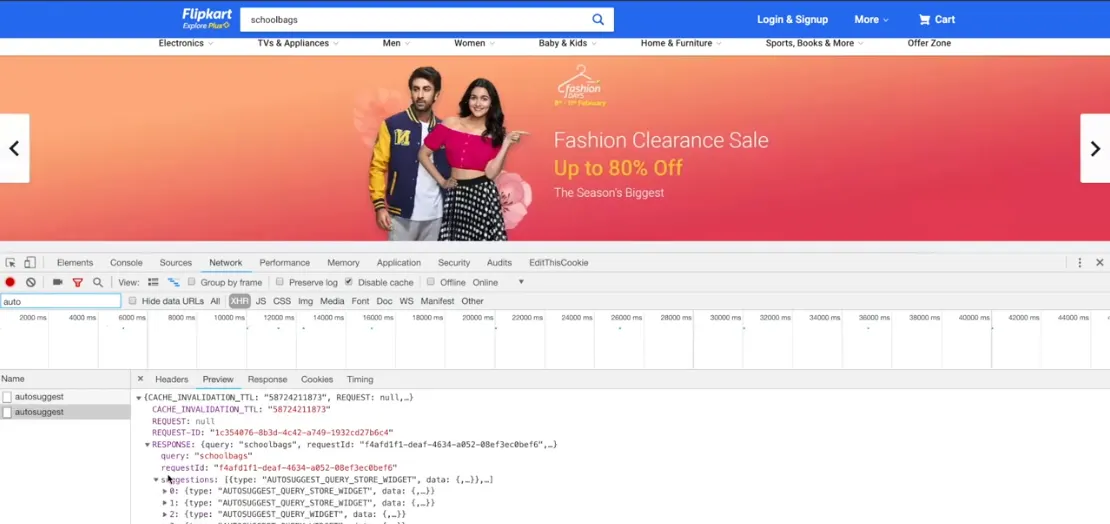
The debounce function makes a function wait until a certain amount of time has passed since the last call before running. It limits the number of times the function is called.
Let’s understand it by doing it. First, create the files below in the same folder.
Without debouncing
index.html
<!DOCTYPE html><html lang="en"><head> <meta charset="UTF-8"> <meta name="viewport" content="width=device-width, initial-scale=1.0"> <title>Learn JavaScript</title></head><body> <input type="text" onkeyup="getData()" /> <script src="./index.js"></script></body></html>index.js
// Debouncing in JavaScriptlet counter = 0;
const getData = () => {  // calls an API and gets data  console.log("Fetching Data....", counter++);};
Type anything in the text field and open the console. Output: getData runs on every keystroke — typing “school” logs 6 times.
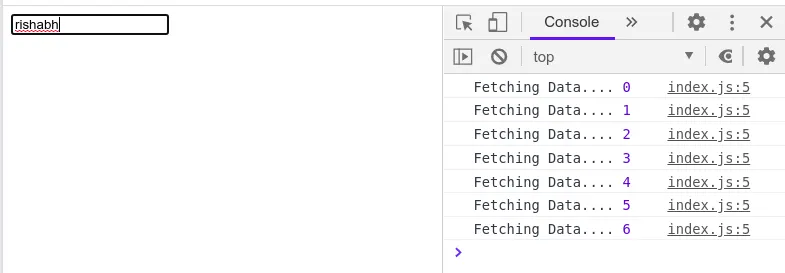
But in a search bar (or anywhere we don’t need to call the API during continuous typing), it should call the API only when we take a pause. Let’s implement that.
Debounce using setTimeout
index.html — call betterFunction instead:
<input type="text" onkeyup="betterFunction()" />index.js
// Debouncing in JavaScriptlet counter = 0;
const getData = () => {  // calls an API and gets data  console.log("Fetching Data....", counter++);};
const debounce = function (func, delay) {  let timer;  return function (...args) {    // keep the correct `this` for func    let context = this;    clearTimeout(timer);           // cancel the previous timer    timer = setTimeout(() => {      func.apply(context, args);   // run only if no new call happened within `delay`    }, delay);  };};
const betterFunction = debounce(getData, 300);
I typed “school bag” and took a pause after typing “school”:
Fetching Data.... 0 ← after "school" (pause)Fetching Data.... 1 ← after "school bag" (stopped typing)Working: betterFunction is called on every keystroke. Each call clears the previous timer and starts a new one. Only when there is a pause of 300 ms (no new keystroke) does the timer finish and call getData (func.apply(context, args)). This works because of a closure — every call shares the same timer variable.
Earlier you saw a request for every keystroke; now it is called only when you pause. The exact output depends on your typing speed.
Passing the input value to the API function:
const search = debounce((query) => {  console.log("Searching for:", query);}, 300);
document.querySelector("input").addEventListener("input", (e) => search(e.target.value));
// Typing "phone" quickly logs only once:// Searching for: phone
Debounce with “leading” call (run immediately, then wait)
Sometimes we want the function to run on the first event, and then ignore events until the user pauses (e.g. a Submit button).
function debounceLeading(func, delay) { let timer; return function (...args) { if (!timer) func.apply(this, args); // first call runs immediately clearTimeout(timer); timer = setTimeout(() => { timer = undefined; // allow the next leading call after a pause }, delay); };}Throttling
Throttling ensures that a function is executed at most once every specified period, no matter how many times it is triggered. Unlike debouncing, which waits until the user stops, throttling limits the rate of execution.
It is used for performance optimization and rate limiting of function calls and APIs.
Say we have a button, and whenever the user clicks it, we call an API. If the user keeps clicking, that causes serious performance issues. To overcome this, we can limit the click handler: after one click, further clicks are ignored for 300 ms; after 300 ms the user can click again.
Create a simple index.html, then create index.js and paste the code below.
Without throttling
// Throttling in JavaScriptlet counter = 0;
const expensive = () => {  // calls API and gets data  console.log("Expensive calls.." + counter++);};
window.addEventListener("resize", expensive);
Now whenever you resize the browser window, expensive is called hundreds of times.
Throttle using a flag and setTimeout
// Throttling in JavaScriptlet counter = 0;
const expensive = () => {  // calls API and gets data  console.log("Expensive calls.." + counter++);};
const throttle = function (func, limit) {  let flag = true;  return function (...args) {    let context = this;    if (flag) {      func.apply(context, args); // run now      flag = false;              // block further calls      setTimeout(() => {        flag = true;             // allow calls again after `limit`      }, limit);    } else {      console.error("Rate limit has been reached. Please wait for " + limit / 1000 + "s");    }  };};
const betterFunction = throttle(expensive, 1000);
window.addEventListener("resize", betterFunction);
Now, while resizing continuously, expensive runs once per second.
Throttle using date/time
Instead of a timer, compare the current time with the last time the function ran:
const throttleFunction = (func, delay) => {  // previously called time of the function  let prev = 0;
  return (...args) => {    let now = new Date().getTime();    if (now - prev > delay) {      prev = now;      return func(...args);    }  };};
const btn = document.getElementById("btn");btn.addEventListener("click", throttleFunction(() => {  console.log("button is clicked");}, 1500));
Clicking rapidly logs “button is clicked” at most once every 1.5 seconds.

With this version, events during the waiting period are simply ignored — you will not get the last data after stopping. For example, typing “school” quickly might only call the function for “s”, and the final text is never sent.
Throttle that also runs with the latest arguments (trailing call)
To avoid losing the last event, store the latest arguments while blocked and run once more when the time limit ends:
const throttleWithTrailing = function (func, limit) {  let flag = true;  let lastArgs = null; // to store the most recent arguments
  return function (...args) {    const context = this;
    if (flag) {      func.apply(context, args); // execute immediately      flag = false;
      // start the timer to reset the flag      setTimeout(() => {        flag = true;        // execute the function with the latest arguments, if any        if (lastArgs) {          func.apply(context, lastArgs);          lastArgs = null; // reset stored arguments        }      }, limit);    } else {      lastArgs = args; // store the latest arguments    }  };};
const log = throttleWithTrailing((text) => console.log("Search:", text), 1000);log("s");       // Search: s          (immediately)log("sc");      // storedlog("school");  // stored (replaces "sc")// after 1 s:   Search: school       — the last value is not lost
Throttling vs debouncing
Throttling: no matter how many times the user fires the event, the attached function is executed only once in a given time interval.
Debouncing: no matter how many times the user fires the event, the attached function is executed only after the specified time once the user stops firing the event.
When typing from “q” to “m” in the search box, with a delay/limit of 2 seconds, this is the output:
Throttle — function executed every 2 seconds while typing:

Debounce — function executed only when the user stopped typing for 2 seconds:

| Debouncing | Throttling | |
|---|---|---|
| Runs | once, after events stop for delay | at most once every limit |
| During continuous events | never runs (keeps waiting) | runs at a steady rate |
| Depends on pauses | Yes | No — fixed time interval |
| Best for | search box, auto-save, form validation, resize end | scroll, resize, mouse move, button spam, game controls |
Use case 1: Search bar
Debouncing: we search “school bags”. With debouncing, the function waits between keystrokes: s c h o o l b a g s. If the time between “l” and “b” is more than the delay, the function is called and we get results for “school”. If the time between “o” and “l” was also more than the delay, we would get results for “schoo”, then “school”, then “school bags”. (More control — the function is called only when the gap between two events is longer than the delay.)
Throttling: if we search “school bags” with throttling, the function is called on the first keystroke, then the user has to wait for the limit before it is called again. Say the limit is 300 ms: we type “s”, the function runs and fetches results for “s”. After 300 ms it runs again with whatever we have typed by then — “school bags” if we finished, otherwise the partial text. (The call timing is fixed — the function is called once per time interval, regardless of pauses.)
So for a search bar, debouncing is more suitable than throttling.
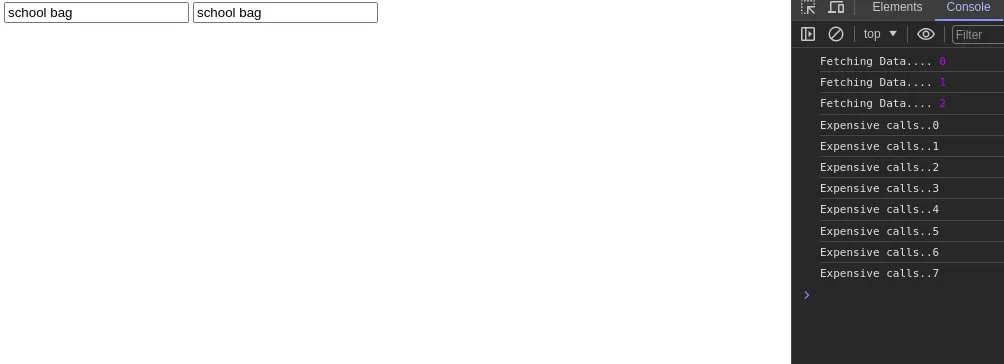
In the screenshot, both debounce and throttle are used on input boxes. With the first box (debounce), typing “school bag” called the function only 3 times with a 300 ms delay. With the second box (throttle), the function was called more than 3 times, because it runs once in every 300 ms interval while typing continues.
Use case 2: Resizing the browser window
Debouncing: the user may resize very fast or very slowly. With a 100 ms debounce, the function runs only when the user pauses or finishes resizing; while resizing quickly it doesn’t run at all.
Throttling: the function runs as soon as the user starts resizing, whether fast or slow, and then again only after each time limit.
So here throttling is more suitable when the UI must update during resizing (e.g. adjusting a layout). If you only need the final size, debouncing works well.
Use case 3: Shooting game button
Throttling is more suitable, as we need to wait a short time (say 100–200 ms) between shots, and ignore all button clicks during that time.
Interview questions
// Q1: With debounce(fn, 500), the user types a key at 0 ms, 200 ms and 400 ms, then stops.// When does fn run, and how many times?// Answer: once, at 900 ms (500 ms after the last keystroke at 400 ms).
// Q2: With throttle(fn, 500) (flag version), calls happen at 0, 200, 400, 600 and 800 ms.// When does fn run?// Answer: at 0 ms and 600 ms (the flag resets at 500 ms; the 600 ms call is the first one after that).
// Q3: Why does this debounce NOT work?function brokenDebounce(func, delay) { return function (...args) { let timer; // new variable on every call! clearTimeout(timer); // clears nothing timer = setTimeout(() => func(...args), delay); };}// Answer: `timer` must live in the outer function (closure) so all calls share it.// Q4: Add cancel() to debouncefunction debounceWithCancel(func, delay) { let timer; function debounced(...args) { clearTimeout(timer); timer = setTimeout(() => func.apply(this, args), delay); } debounced.cancel = () => clearTimeout(timer); return debounced;}
const save = debounceWithCancel(() => console.log("saved"), 1000);save();save.cancel(); // nothing is loggedInterview practice: Interview versions with
cancel,flush, and leading/trailing options: Machine Coding — debounce and throttle.